
Building a community on Discord is one thing; connecting that community directly to your game’s ecosystem is another. One of the most effective ways to bridge this gap is by rewarding your players with in-game assets like exclusive skins or items directly through Discord.
In this guide, we’ll walk you through setting up the LootLocker Squire bot to automate these rewards using Claimable Rewards. The best part? Once you’ve set up a "deep" integration, you can add new rewards through the Web Console without ever needing to push a new game update.
The Workflow at a Glance
To get this running, we’ll tackle these six steps:
- Unified Player Accounts: To tie Discord IDs to game accounts.
- Invite the Squire Bot: To manage the Discord side of things.
- Create the Reward: Setting up the asset in LootLocker.
- Create a Trigger: The bridge between a Discord action and an item grant.
- Implement Game Code: Checking for these rewards in-game.
- Announce: Spreading the word to your players.
Step 1: Connecting Identities
Before a player can claim an item, LootLocker needs to know which Discord user belongs to which player account. We do this through Unified Player Accounts.
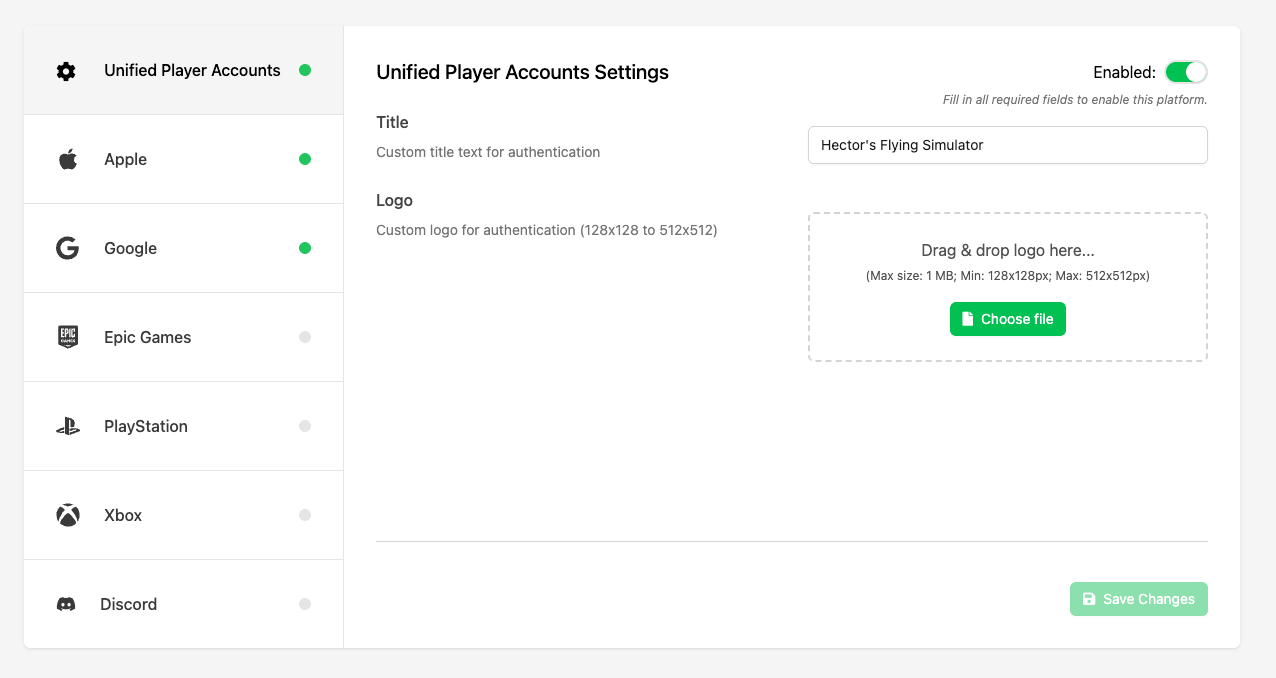
- Navigate to your LootLocker Console Settings.
- Select Unified Player Accounts
- Enable Unified Player Accounts in the top right corner.
- Configure your platforms (Steam, Google, iOS, etc.) by selecting them in the list and populating the relevant information
Step 2: Create the Asset
Now, let’s create the "shiny thing" the player actually gets.

- Go to Content > Assets and click +Add Asset.
- Create a Context (e.g., "Skins") and name your Asset (e.g., "Discord Founder Hat").
- Hit Create and make sure to click Activate Asset on the right side.
Step 3: Summon the Bot
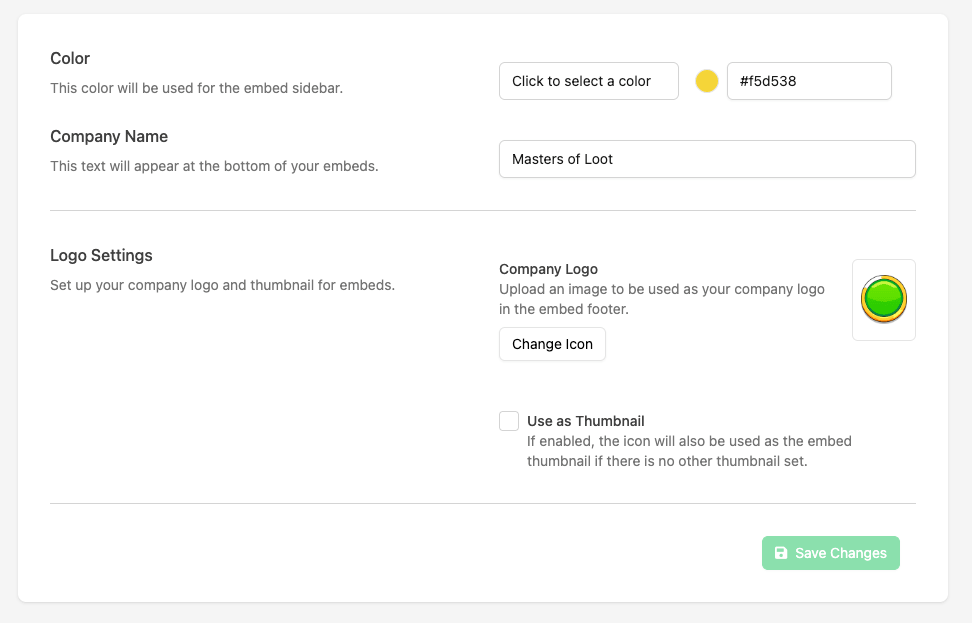
We use Squire, our dedicated Discord bot, to handle the heavy lifting. Follow our Squire Setup Guide to invite the bot to your server and link it to your game.
Step 4: Setting the Trigger
The Trigger is what tells Squire, "When a player clicks this, give them that." But by adding a Have Linked requirement, you ensure only players who have authenticated with a specific platform can claim the prize.
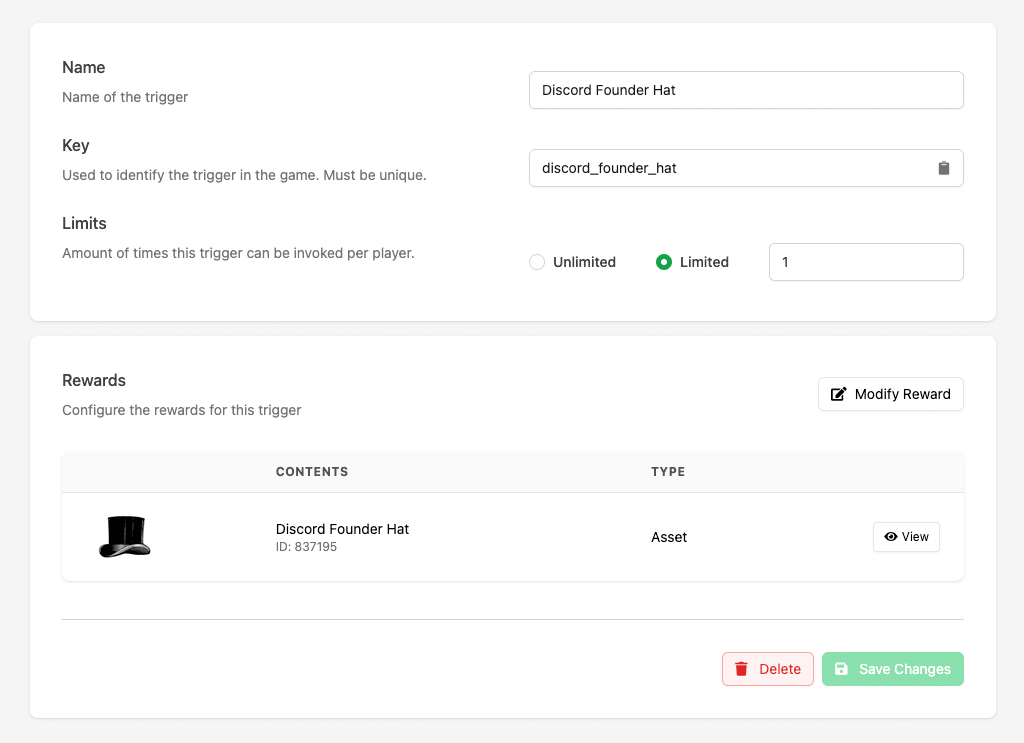
Lets first create the trigger and add a reward:
- Go to Systems > Triggers and click +Create Trigger.
- Fill in the Name (e.g., "Discord Founder Hat") and Key (e.g., "discord_founder_hat").
- Set a Limit of 1 so players don't farm the reward.
- Add the Asset you created in Step 2 as the reward.
Next, we'll add the segment requiring players to link their platform account:
- Click +Add Segment.
- Select "Have Linked", "one of", and then select the platform you want to require (e.g., Steam, PlayStation, or Google).
- Click Save & Done in the segments section to save that segment.
- Click Create Trigger to save this trigger.
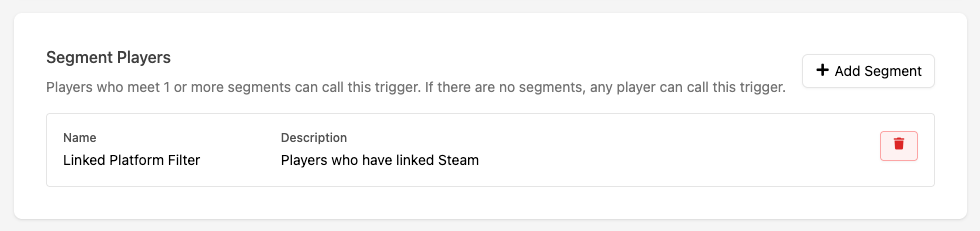
By creating this segment, Squire will now check if the player's Discord account is linked to a LootLocker account that has also signed in via one of these platforms.
Finally, we'll prepare the Discord embed that Squire will post in your Discord channel:
- Switch to the Squire tab at the top of this Trigger's config page.
- Enter a Custom Title, Message and Image. This is what players will see in Discord.
- Save your changes.
Step 5: Authentication & Implementation
In order for the "Have Linked" requirement to work, your game must authenticate the player using the chosen platform. If a player claims a reward on Discord without a link to the platform they're playing, the link won't exist and the reward won't be avaialble. Alternatively, you can choose to add Discord authentication into your game, requiring players to sign in with Discord once they're in-game.
You can read up on how to authenticate with all our supported platforms on our documentation website.
Once you've authenticated your players you have two ways to handle rewarding them in your game code.
Option A: The Simple Check
This method checks for a specific Asset ID. It’s quick but requires a game update if you want to change the reward to a different ID later.
Option B: The "Deep" Integration (Recommended)
This is the "set it and forget it" method. By using Metadata, your game can download and apply assets (like textures) dynamically.
Setup in Console:
- Navigate to your Asset and click the Metadata tab.
- Add a field (Type: File) named skin_texture.
- Upload your texture (up to 750kb).
The Code: The game now looks for any asset with the skin_texture key and applies it automatically.
Step 6: Launch & Announce
Once your code is live and tested, it’s time to tell the world.
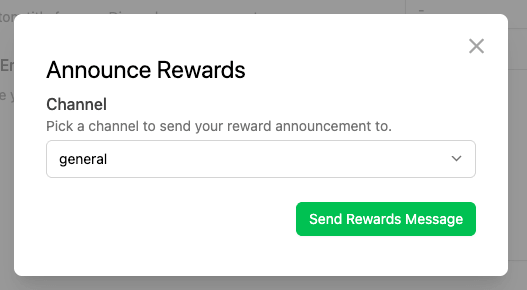
- In the LootLocker Web Console, go to your Trigger, select the Squire tab and click Send Reward Messag. Squire will post the embed you designed directly into your chosen Discord channel. Alternatively, you can use the slash command in Discord: /trigger announce [your_trigger_key]
Endless Possibilities
Because this system is data-driven, you aren't limited to just skins. You could use metadata to:
- Change UI colors to "Discord Purple."
- Unlock secret "Supporter" items
- Grant XP boosters
- Award currency
By moving the logic to the cloud, you can keep your community engaged with fresh rewards without the friction of a 2GB patch.
Happy building!
Need help? If you run into any snags while setting up your Unified Accounts or Triggers, jump into our Discord Support Channel and ask for help.